assignment_turned_inIssuing Certificates & Managing Holders
Manage Job-Specific Project Certificates & Quote Requests
Updated October 2026•4 min read•For: Producers & Assistants
verifiedQuick Summary
When a general contractor requires multiple job-specific certificates under the same holder (each with a different project name, job number, or subcontract requirement), click "Project COIs" on the Certificate Holder card. If a contract demands higher limits or missing endorsements, click "Request Carrier Endorsement Quote" to generate a ready-to-send underwriter quote email.
In this article
1. Manage Multiple Jobs Under a Single Holder
- Open your client workspace (for example, ACME Contractors, LLC) and go to the Certificate Holders tab.
- On the holder row (such as Apex General Contractors, Inc.), click the Project COIs button (or click + Add next to it to launch a new project certificate directly).
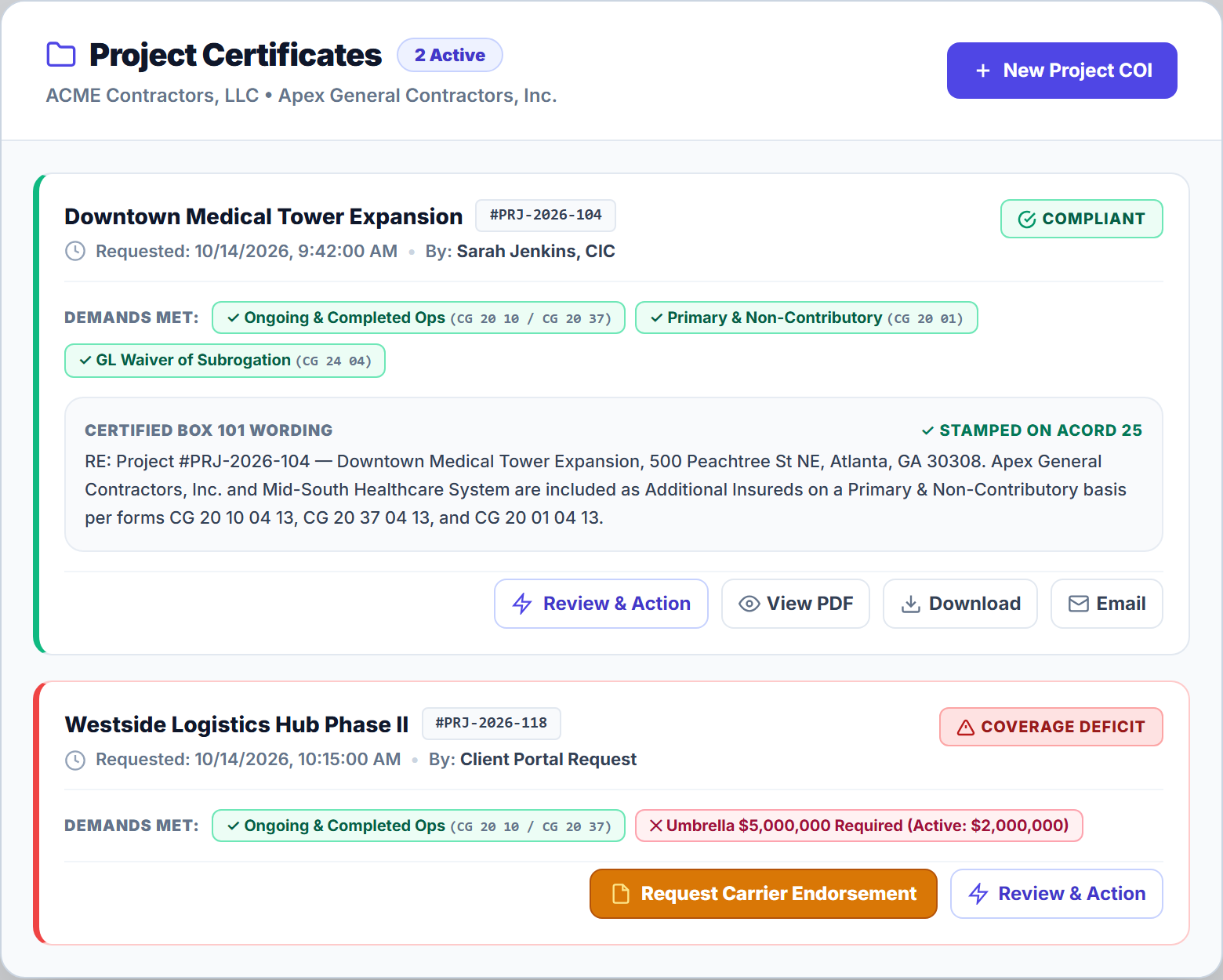
- In the Project Certificates drawer, inspect all active jobs for that holder—complete with Compliant or Coverage Deficit badges, Certified Box 101 Wording, and quick actions (View PDF, Download, Email)—or click + New Project COI.
2. Review Subcontract Compliance & Box 101 Remarks
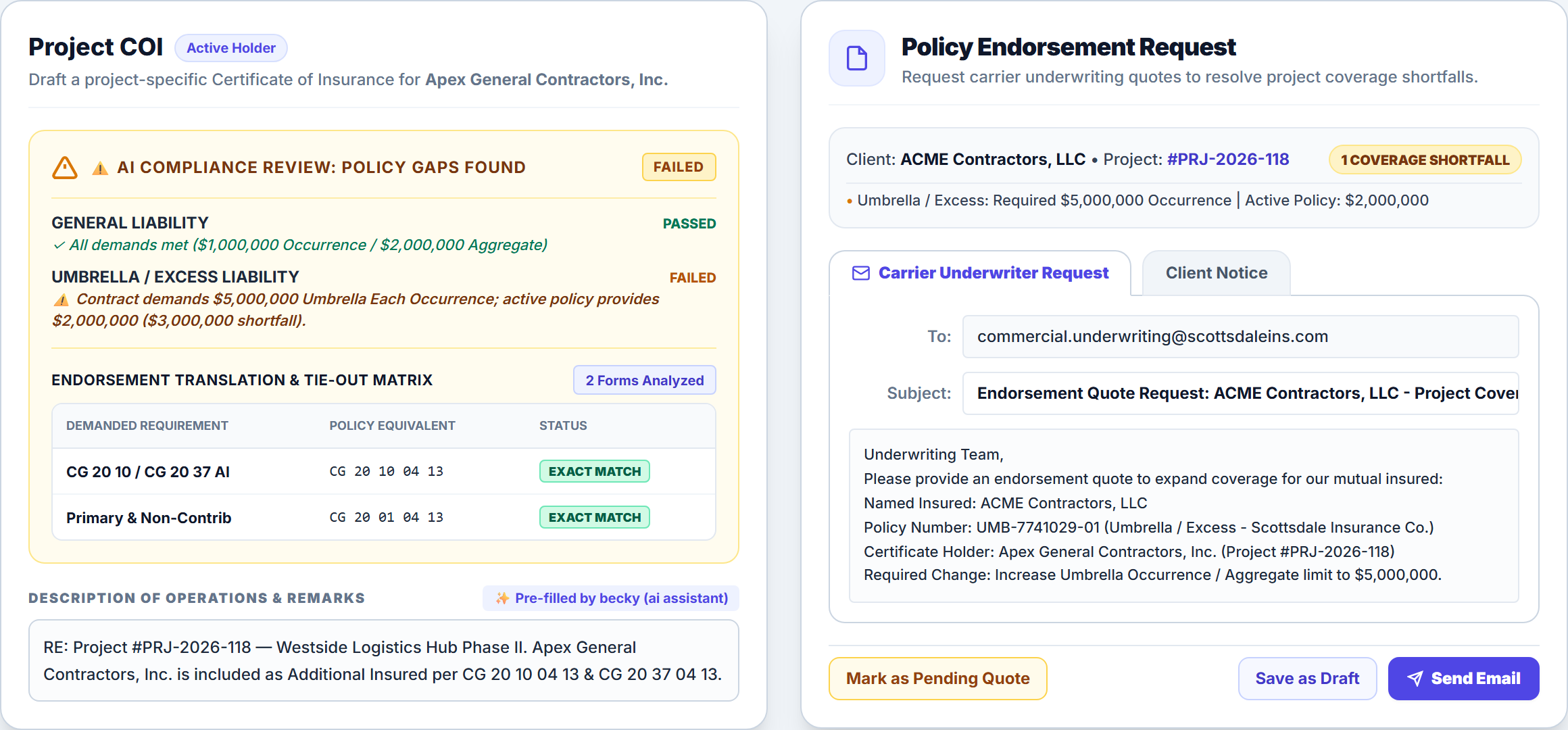
Click Review & Action on any project card (or open a new Project COI workstation) to view the Compliance Audit side-by-side against ACME Contractors, LLC’s active policies:
- Green Checkmark (Demands Met): Active policy limits and endorsements meet or exceed the subcontract demand.
- Red Deficit Alert (Coverage Deficit): Highlights the exact dollar shortfall or missing endorsement form (for example, Umbrella limit
$2,000,000 Activevs.$5,000,000 Required) and locks unapproved issuance.
3. Request a Carrier Endorsement Quote When Limits Fall Short
When a project has a coverage deficit, click Request Carrier Endorsement. This opens the Policy Endorsement Request modal with two ready-to-send email tabs—Carrier Underwriter Request and Client Notice—complete with the policy number, effective date, exact limit increase or ISO form needed, and a Mark as Pending Quote status toggle so you can click Send Email in one step.
Frequently Asked Questions
Creating 15 duplicate holder rows for the same general contractor clutters your directory. Project COIs keep a single master holder record (such as Apex General Contractors, Inc.) while storing separate job names, contract numbers, and project addresses underneath it.
Related Guides in Issuing Certificates & Managing Holders
Was this article helpful?
Let our team know if you found what you needed.
arrow_backPrevious Article
Issue ACORD 28 Commercial Property Evidence
Next Articlearrow_forward
Add, Bulk Import & Merge Certificate Holders
Automate Your Commercial Agency Operations
Put Becky to work for your agency to review policies, audit coverage gaps, and issue verified ACORD certificates in seconds.