contactsIssuing Certificates & Managing Holders
Add, Bulk Import & Merge Certificate Holders
Updated October 2026•4 min read•For: Producers & Assistants
verifiedQuick Summary
Open the Certificate Holders tab to add a single holder (by dropping a prior COI, pasting an email request, or typing manually), bulk import dozens of historical ACORD PDFs in a ZIP file, or merge duplicate holder profiles while preserving attached endorsements and issuance history.
In this article
1. Add a Single Certificate Holder (Prior COI, Email or Manual)
- Open your client workspace (for example, ACME Contractors, LLC) and select the Certificate Holders tab.
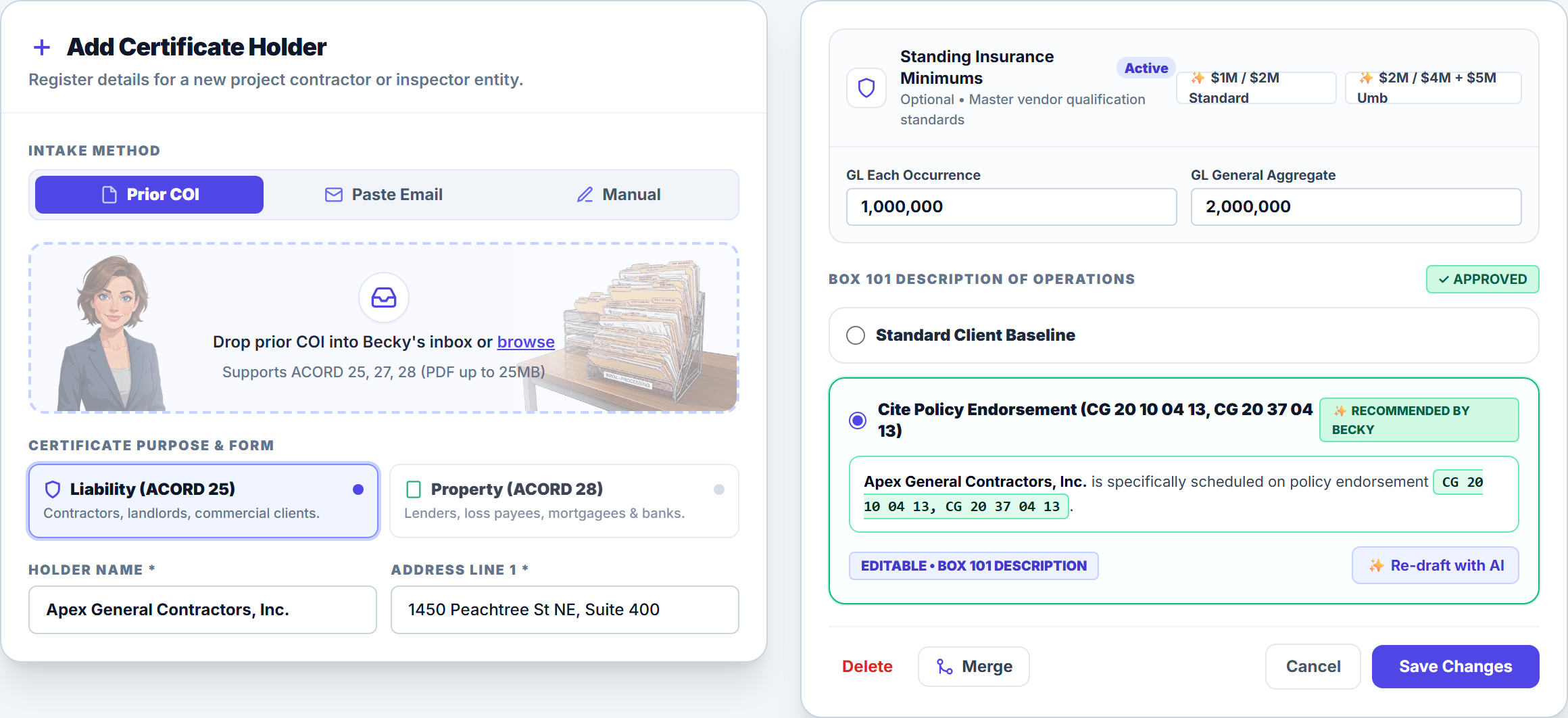
- Click + Add Certificate Holder to open the slide-over intake drawer.
- Under Intake Method, choose one of three options:
- Prior COI: Drop an existing ACORD 25 or ACORD 28 PDF to auto-fill the holder’s name, address, required limits, and Box 101 description.
- Paste Email: Paste an email or contract snippet from a general contractor to extract the holder address and insurance minimums.
- Manual: Type the holder details, select Standing Insurance Minimums (or click the $1M / $2M Standard or $2M / $4M + $5M Umb quick-fill presets), and choose Standard Client Baseline or Cite Policy Endorsement / Custom Wording for Box 101.
- Click Save Changes (or Add Certificate Holder).
2. Bulk Import Historical ACORD PDFs via ZIP
Onboarding a new commercial client with dozens of existing certificate holders? Import all of their prior certificates in one batch:
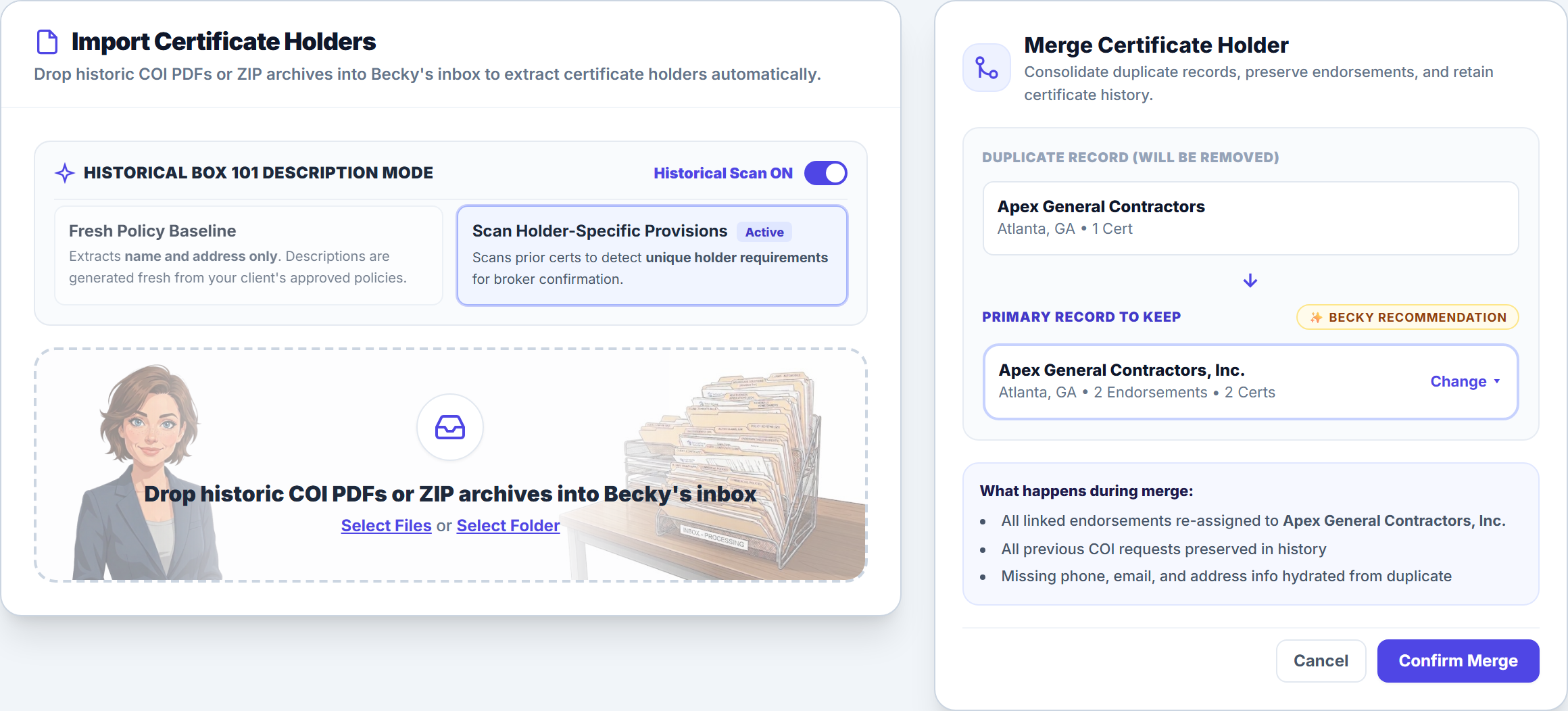
- In the Certificate Holders tab header, click Import Certificate Holders.
- Choose your Historical Box 101 Description Mode (Fresh Policy Baseline recommended for standard onboarding, or Scan Holder-Specific Provisions to preserve custom clauses).
- Drag and drop a
.ziparchive or multiple ACORD 25/28 PDFs into Becky’s dropzone, review the deduplicated holder preview, and click Complete Import.
3. Merge Duplicate Holders & Manage Standing Minimums
If your directory contains two variations of the same company (for example, Apex General Contractors and Apex General Contractors, Inc.), open the duplicate row’s action menu to launch the Merge Certificate Holder modal. Select the Primary Record to Keep (highlighted with a Becky Recommendation badge) and click Confirm Merge—all project certificates and historical audit logs transfer automatically.
Frequently Asked Questions
Certificates with standard or blank descriptions automatically inherit your client’s verified baseline description and mark as APPROVED. Historical certificates that contain custom wording or job-specific clauses are flagged with an UNCONFIRMED DESC badge so you can review and approve them in one click.
Related Guides in Issuing Certificates & Managing Holders
Was this article helpful?
Let our team know if you found what you needed.
arrow_backPrevious Article
Manage Job-Specific Project Certificates & Quote Requests
Next Articlearrow_forward
Use Becky CoPilot for Voice, Policy Lookups & Guided Help
Automate Your Commercial Agency Operations
Put Becky to work for your agency to review policies, audit coverage gaps, and issue verified ACORD certificates in seconds.