Use Becky CoPilot for Voice, Policy Lookups & Guided Help
1. Use Push-to-Talk, Hands-Free Voice or Text Chat
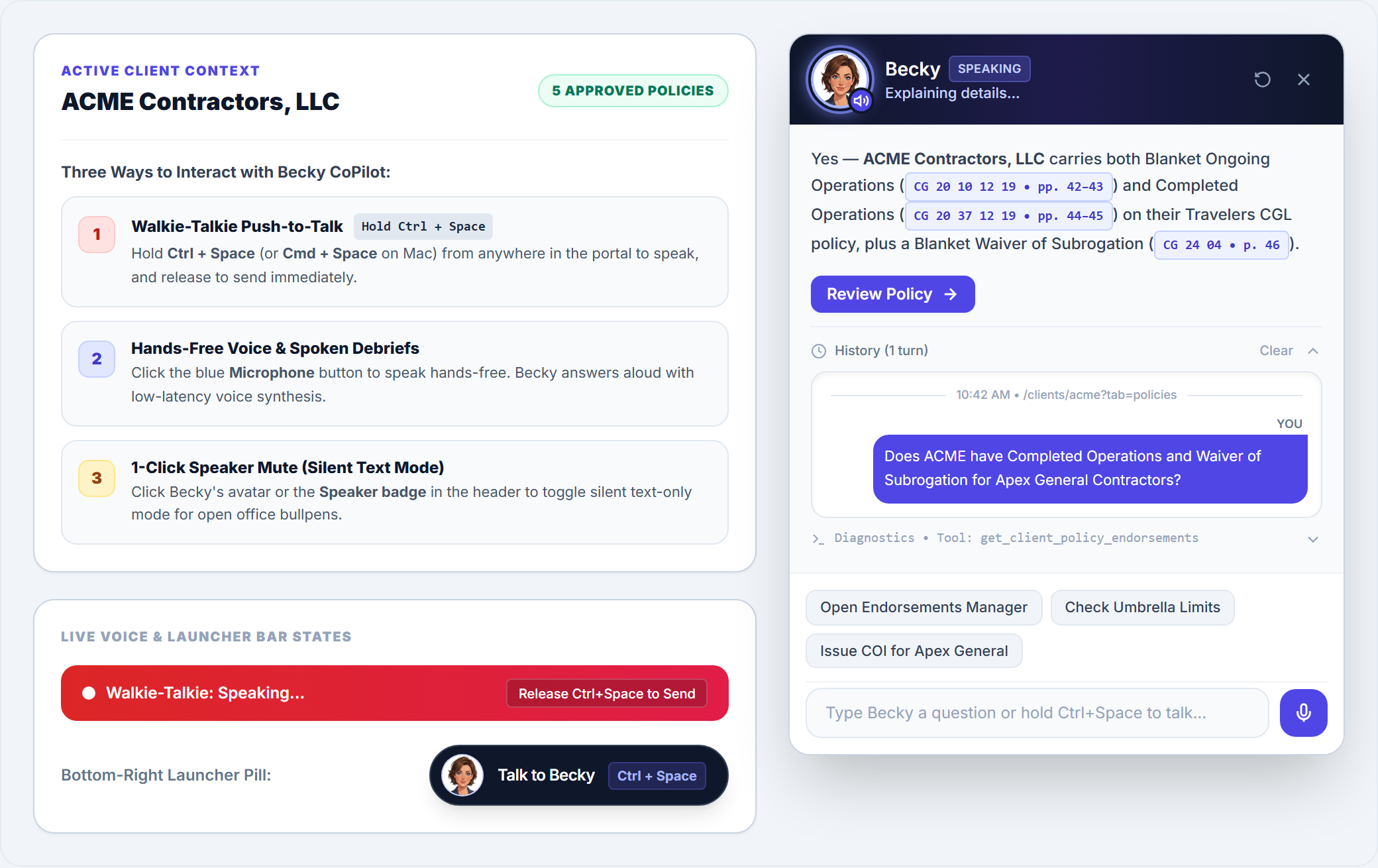
Click the Talk to Becky launcher pill in the bottom-right corner of the Broker Portal (or use your keyboard shortcut from any screen) to interact in three modes:
- Walkie-Talkie Push-to-Talk (Hold Ctrl + Space): Hold
Ctrl + Space(orCmd + Spaceon Mac) to speak your question from anywhere in the portal, then release the keys to send immediately—ideal for busy agency offices. - Hands-Free Voice Mode: Click the blue Microphone button inside the Becky CoPilot input bar to speak hands-free (your question sends automatically when you pause).
- Silent Text Mode (1-Click Mute): Click Becky’s avatar or the Speaker badge in the top-left of the CoPilot header to toggle between spoken audio and silent text-only responses.
2. Ask Policy & Endorsement Questions with Page Citations
While viewing a client account such as ACME Contractors, LLC, ask Becky direct underwriting or certificate questions:
- “Does ACME Contractors have Completed Operations and Waiver of Subrogation for Apex General Contractors?”
- “Are there any residential or roofing exclusions on their Travelers CGL policy?”
- “Why is the Umbrella policy showing a gap warning?”
Becky checks the active declarations, endorsements, and exclusions hierarchy and returns a concise answer with form numbers, page citations, and a 1-click Review Policy action button.
3. Follow Guided Navigation & Amber Spotlight Halos
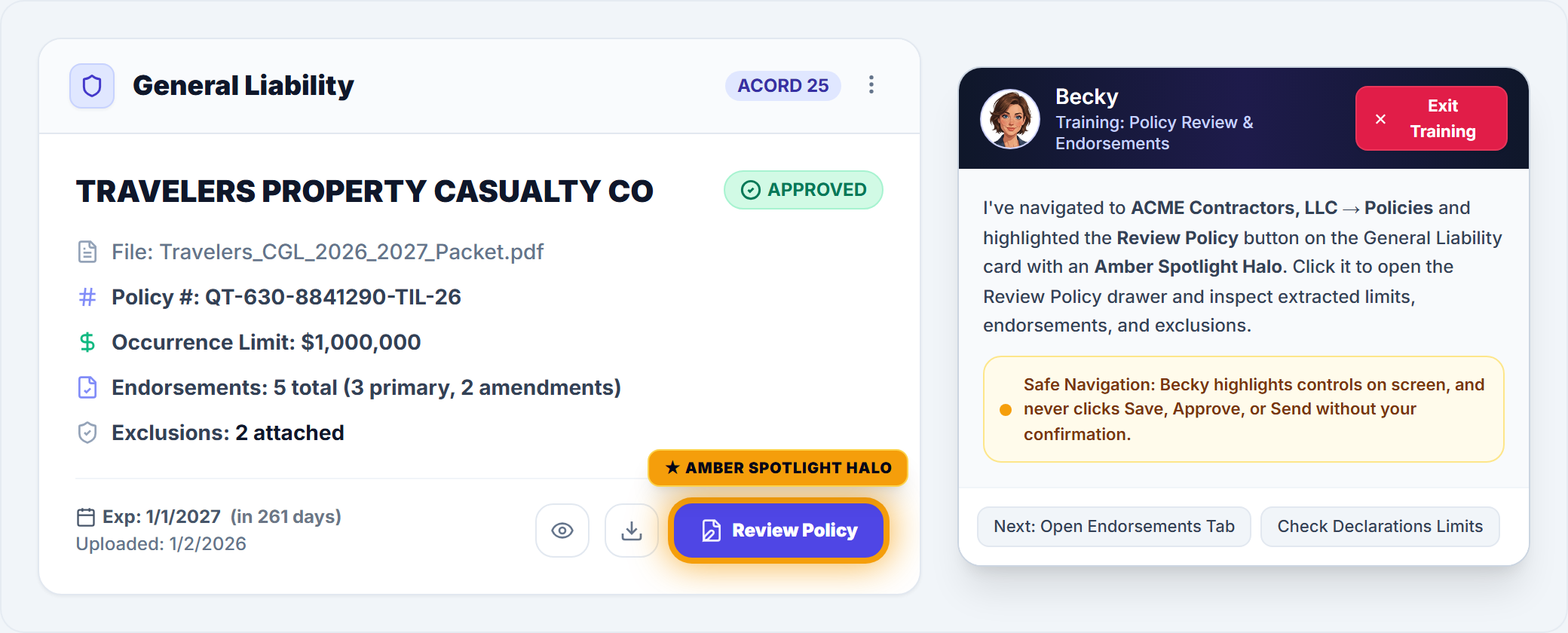
Ask Becky “Where do I review policy limits and endorsements?” or “Where do I add my signature?” Becky automatically navigates to the right screen or tab and places a pulsing Amber Spotlight Halo around the exact button or field you need to click next (such as Review Policy on the General Liability card in the Policies tab). You can exit guided training at any time by clicking Exit Training in the CoPilot header.
4. Safe Navigation & Human-in-the-Loop Confirmations
Becky is designed with strict E&O safety boundaries: she can open tabs, scroll to sections, and highlight buttons with an Amber Spotlight Halo, but she never clicks consequential actions (such as Approve Policy, Confirm & Save, or Send Email) without your explicit confirmation.
Frequently Asked Questions
Was this article helpful?
Let our team know if you found what you needed.
Add, Bulk Import & Merge Certificate Holders
Invite Clients to the Self-Service Portal & Mobile App
Automate Your Commercial Agency Operations
Put Becky to work for your agency to review policies, audit coverage gaps, and issue verified ACORD certificates in seconds.